In this two-part tutorial, I will show you how to easily create a modern blog in less than 15 minutes. For this step-by-step guide, we are going to use Softaculous installer domiciled in a cPanel hosted by HostPinnacle.
NB: You can skip to Part 2 of this tutorial if you already have an hosting account (cpanel username and password)
Part 1: Create a cPanel Account at HostPinnacle
Head over to HostPinnacle to register a domain (for free*) and host it so you can get access to the Email section inside your cPanel Account. HostPinnacle is responsive; you can conveniently visit the site using your laptop, desktop, tablet, or smartphone.

From here, you can see that HostPinnacle offers a wide array of web solutions, including domain registration, bulk sms service, and reseller services. But for the purpose of this tutorial, we’ll be focusing on the web hosting service.
Click the ‘Web Hosting‘ link (as shown in the website screenshot below).

On this page you can view three hosting plans: Starter, Standard, and Executive Package bundled with various hosting features and varying package prices. All the 3 hosting plans offer free domain registration service (see the screenshot in Step 3).
Select a Package that best fits your project, budget, and preference by clicking the Buy Now button then continue.

Check your Chosen Domain Name for Availability

Note: The domain extension that you can register for free varies from package to package. For example, Free Domain Registration in each package applies to the following extensions only:
- Starter Package: * .co.ke, .com, .org, .ac.ke, .sc.ke, .me.ke, .or.ke, .co.tz, .co.za, .info.ke, .ne.ke, .sc.tz, .ac.tz
- Standard Package: * .co.ke, .com, .net, .org, .ac.ke, .sc.ke, .me.ke, .or.ke, .co.tz, .co.za
- Executive Package: * .co.ke, .com, .net, .org, .africa, .biz, .ac.ke, .sc.ke, .me.ke, .or.ke, .co.tz, .co.za, .ac.tz, .rw

Don’t you fret if your chosen domain name is unavailable. You can try a different domain extensions. You can also change the search name entered until the domain is available.
Choose the Domain Registration Period
Configure your domain by selecting the duration of the registration: 1 Year, 2 Years, 3 Years? Please keep in mind that the domain/hosting is renewable after the end of the billing cycle.

The following options are available: Annual, Biennial, and Triennial.
Review Domain Name Selection and Add-ons
Another great feature from HostPinnacle is that it gives you the option to add an ID Protection (Domain Privacy) free of charge. This great add-on ensures that your sensitive registration info is not visible to the public when accessed via a WHOIS lookup portal.

We recommend that you select the ID Protection add-on before you continue to the checkout page.
Proceed to Checkout and Receive your cPanel Login Credentials
Click the Checkout button to enter your billing details and make your payment.

The HostPinnacle checkout process is 100% automated. Your invoice will be immediately marked as paid the moment you finish making your payment.
Cheers! You already have a cPanel Account 🙂 But where are cPanel Login Credentials? Well, your cPanel Username and Password have been sent to your email address (the one you specified in your billing details above). Please check your email. Inside there, you’ll find your cPanel login credentials plus other useful info.
Part 2: Login to cPanel and Create Your Blog
Sign in to your cPanel Account using your cPanel Username and Password. A sample URL to the cPanel looks like this: https://domain.com/cpanel OR https://domain.com:2083

For example, if your domain name is example.net, you can login to cPanel by typing https://example.net:2083 in your browser’s (firefox, chrome, opera) address bar. You can still access cPanel via https://example.net/cpanel

Locate Softaculous on cPanel
Once you are signed in to the cPanel, navigate downwards to the Software section and click on the Softaculous Apps Installer.

Tapping the Softaculous icon or link will take you to the installer interface (see the screenshot below).
Go to the Softaculous Dashboard
On the Softaculous homepage, you’ll see some top scripts listed. WordPress is one of the top installations shown. Hover over the WordPress grid and click Install.

Software Setup
In Software Setup, fill out the Choose Installation URL section

-
- Choose Protocol: It should default to the https:// option, ensuring that your website is secure by using the SSL certificate.
- Choose Domain: Select the domain where you wish to install Softaculous.
- In Directory: Typically, you would leave this blank. This field is utilized if you’re trying to install WordPress in a sub-directory (folder).
Select WordPress Version
Complete the rest of the installation setup. Choose the version of WordPress you want to install. We recommend using the most recent release, as it will be the most secure and should be compatible with most themes and plugins.

Configure Your WordPress Blog
In the Site Settings section, you’ll need to enter a Site Name and Site Description. This can be whatever you want and can be changed after the installation.

-
- Site Name − Give a name to your website in this field
- Site Description − Provide a short description of your website (you may simply enter a slogan or tagline)
- Enable Multisite − If Checked, then it will install a WordPress network installation (please do not enable multisite for now).
Complete the Admin Account section
Specify the Username, Password, and Email Address for the person who will be managing your blog. The admin account details are important and will be used later to sign in to your WordPress site and manage it.

-
- Admin Username: We suggest using something other than the default ‘admin’ for the username, as this is the default for all WordPress installations and poses a security risk.
- Admin Password You can create a password or generate one using the key icon.
- Admin Email: This is where WordPress notifications will be sent, including password reset (if you forget your password).
Choose Your Blog’s Language
Select the default language for your site.

Select Plugins (Optional)
This section allows you to select plugins to use for your site. For now, we recommend that you skip checking these plugins; do not select any of the listed plugins.

Proceed to the Advanced Options section
In the Advanced Options section, the options don’t need to be changed, but they include the database name, table prefix, disable update notification emails, set auto-upgrade, and more.

Choose a WordPress Theme
The Select Theme allows you to select a theme to use for your site. By default, WordPress uses a theme named after the year, but you can choose one that fits the purpose of your website.

Install
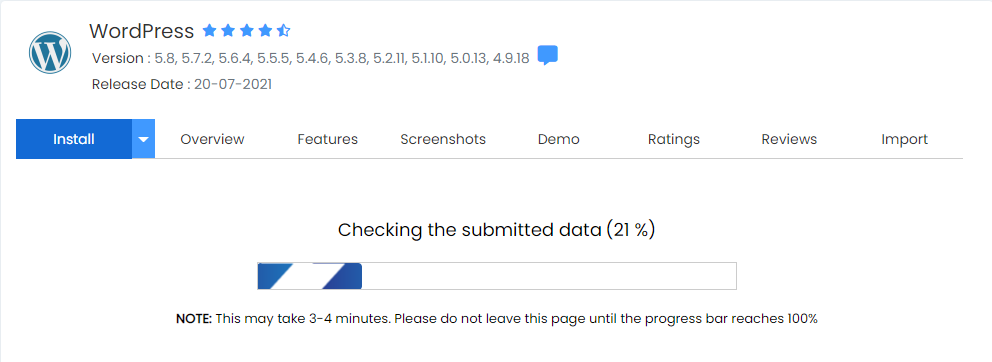
Once done, click Install. A progress bar will show your installation status and refresh once the installation is complete. Do not close the browser while this is in progress, as it can interrupt the installation.
Done!
Congratulations! Your WordPress site is now ready for you to customize!

Customization
You can now proceed to login to your newly-created WordPress blog and start customizing it to your liking.
To sign in to the blog’s WordPress dashboard, type the following in a browser’s address bar: https://example.com/wp-admin
And remember to replace example.com with your blog’s domain.