

In this two-part tutorial, I will show you how to easily create a free business email address in less than 5 minutes using your HostPinnacle’s cPanel.
NB: You can skip to Part 2 of this tutorial if you already have an hosting account at HostPinnacle. Simply login to your cPanel and carry on.
Part 1: Create a cPanel Account at HostPinnacle
Head over to HostPinnacle to register a domain (for free*) and host it so you can get access to the Email section inside your cPanel Account. HostPinnacle is responsive; you can conveniently visit the site using your laptop, desktop, tablet, or smartphone.

From here, you can see that HostPinnacle offers a wide array of web solutions, including domain registration, bulk sms service, and reseller services. But for the purpose of this tutorial, we’ll be focusing on the web hosting service.
Click the ‘Web Hosting‘ link (as shown in the website screenshot below).

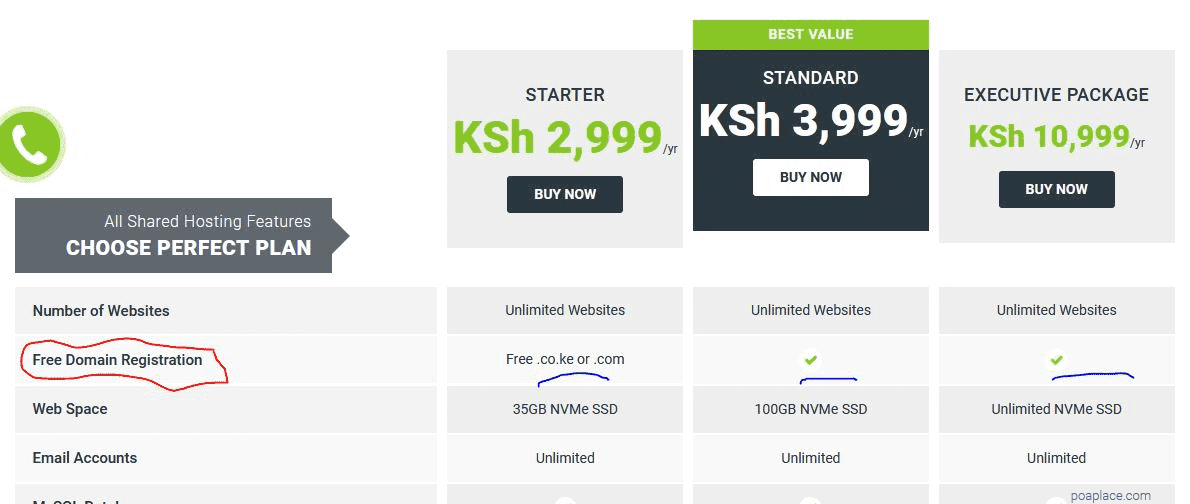
On this page you can view three hosting plans: Starter, Standard, and Executive Package bundled with various hosting features and varying package prices. All the 3 hosting plans offer free domain registration service (see the screenshot in Step 3).
Select a Package that best fits your project, budget, and preference by clicking the Buy Now button then continue.
Check your Chosen Domain Name for Availability
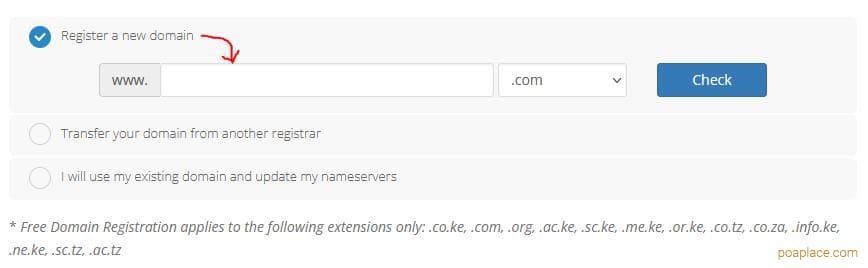
Note: The domain extension that you can register for free varies from package to package. For example, Free Domain Registration in each package applies to the following extensions only:
- Starter Package: * .co.ke, .com, .org, .ac.ke, .sc.ke, .me.ke, .or.ke, .co.tz, .co.za, .info.ke, .ne.ke, .sc.tz, .ac.tz
- Standard Package: * .co.ke, .com, .net, .org, .ac.ke, .sc.ke, .me.ke, .or.ke, .co.tz, .co.za
- Executive Package: * .co.ke, .com, .net, .org, .africa, .biz, .ac.ke, .sc.ke, .me.ke, .or.ke, .co.tz, .co.za, .ac.tz, .rw
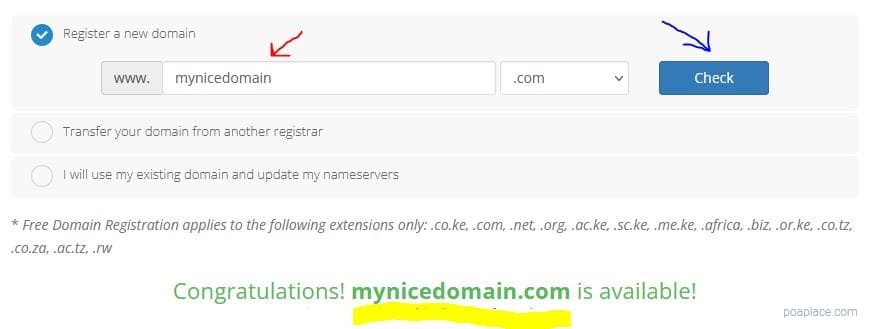
Don’t you fret if your chosen domain name is unavailable. You can try a different domain extensions. You can also change the search name entered until the domain is available.
Choose the Domain Registration Period
Configure your domain by selecting the duration of the registration: 1 Year, 2 Years, 3 Years? Please keep in mind that the domain/hosting is renewable after the end of the billing cycle.
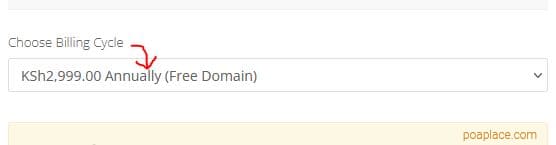
The following options are available: Annual, Biennial, and Triennial.
Review Domain Name Selection and Add-ons
Another great feature from HostPinnacle is that it gives you the option to add an ID Protection (Domain Privacy) free of charge. This great add-on ensures that your sensitive registration info is not visible to the public when accessed via a WHOIS lookup portal.
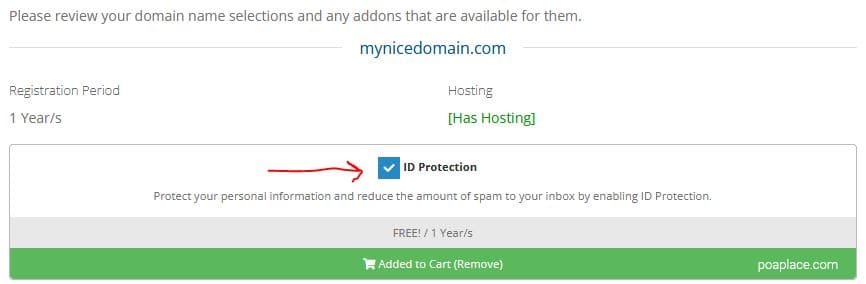
We recommend that you select the ID Protection add-on before you continue to the checkout page.
Proceed to Checkout and Receive your cPanel Login Credentials
Click the Checkout button to enter your billing details and make your payment.
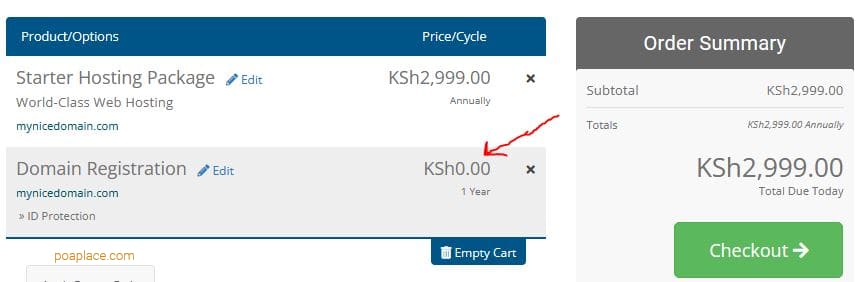
The HostPinnacle checkout process is 100% automated. Your invoice will be immediately marked as paid the moment you finish making your payment.
Cheers! You already have a cPanel Account 🙂 But where are cPanel Login Credentials? Well, your cPanel Username and Password have been sent to your email address (the one you specified in your billing details above). Please check your email. Inside there, you’ll find your cPanel login credentials plus other useful info.
Part 2: Login to cPanel and Create Your Email Address
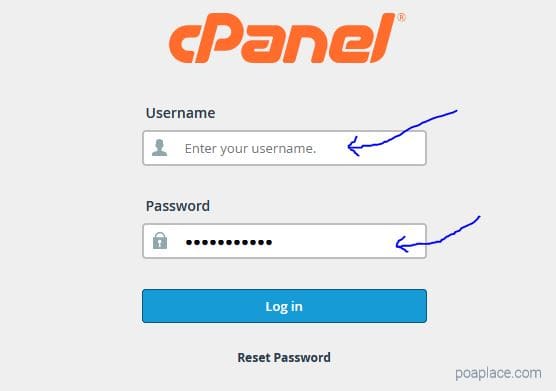
Sign in to your cPanel Account using your cPanel Username and Password. A sample URL to the cPanel looks like this: https://domain.com/cpanel OR https://domain.com:2083

For example, if your domain name is example.net, you can login to cPanel by typing https://example.net:2083 in your browser’s (firefox, chrome, opera) address bar. You can still access cPanel via https://example.net/cpanel
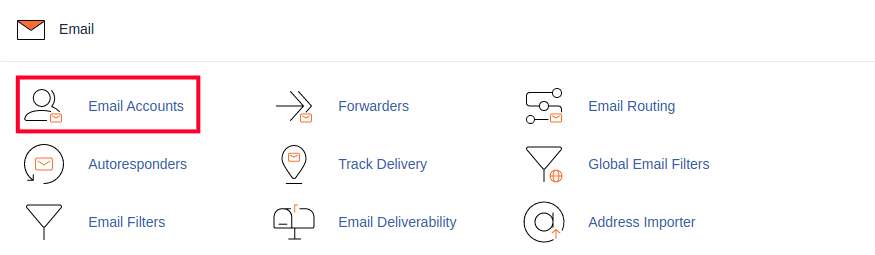
Once you are signed in, scroll down to the Email section of the cPanel and click on the Email Accounts Icon or Link.
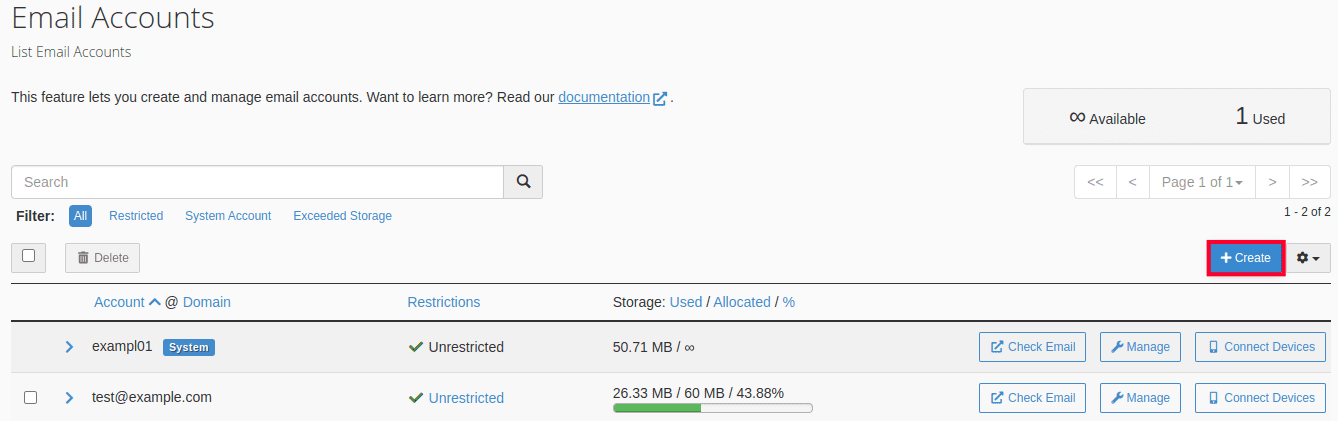
You will then see the Email Accounts page. If any accounts already exist then they will be listed here. Click on the button labeled Create.
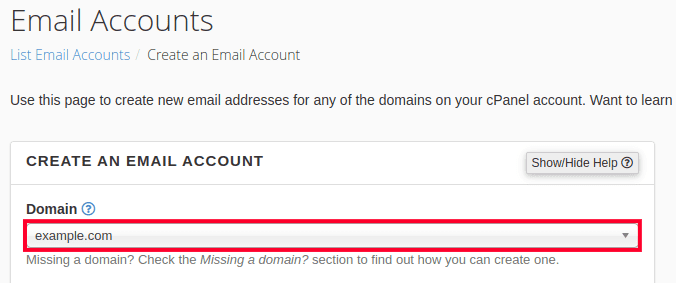
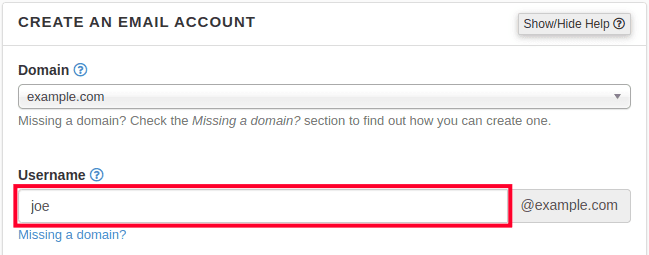
The Create an Email Account section will be displayed. Select the Domain that you want to use for the email account. If you have multiple domains on this account, then you will be able to click on the drop-down menu to select a different domain. If you are using only one domain on the account, then only that domain will appear and you can move to the next step.
Type in the Username that you want to use. The domain name is automatically appended based on the domain that you have selected. Note that you can only use letters, numbers, periods, hyphens, and underscores for the name. Common usernames: info, admin, sales, support, your-name, etc.
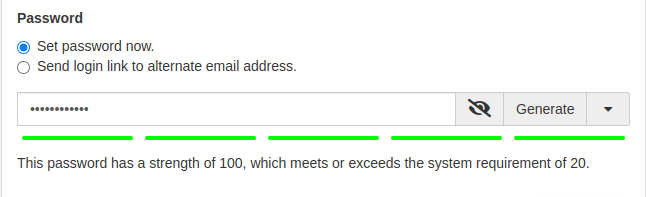
The next option is for setting the password for the email account. You can choose to Set password now or Send login link to alternate email address to send an email for them to set their own password. There is also a Generate option that allows you to randomly generate a secure password. We recommend you choose the Set password now option.
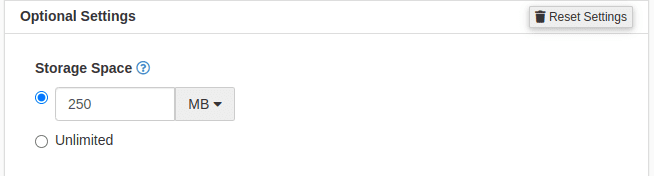
The next are optional settings. Click the Edit Settings button to access them.
Set the Storage Space. By default, the value is set to 250 MB. This space is the amount of space that the email account can occupy on the server. You can set this to a particular number or you can click on Unlimited.
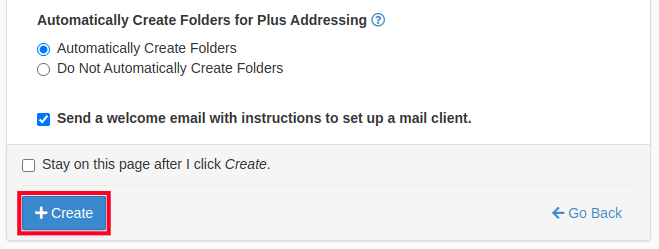
After you set the storage space for the email account, you will see an option named Automatically Create Folders for Plus Addressing. This option allows for folders to be created automatically if they are using Plus Addressing. You can also set it to not create folders.

You can also opt to send a welcome email that instructs your user on how to setup a mail client. By default, this option is checked. If you don’t want to send the email, then simply uncheck the box.
Click on the blue button labeled CREATE in order to create the account. If you wish to stay on the same page after the account is created, then check the box labeled “Stay on this page after I click Create.”
Congratulations! You’ve just created a professional email address 🙂